How to Read a Degree Audit
Degree Audit is a tool within Minnesota State Student Planner, providing a personalized listing of courses and requirements, marking them as already completed, planned, or still needed.
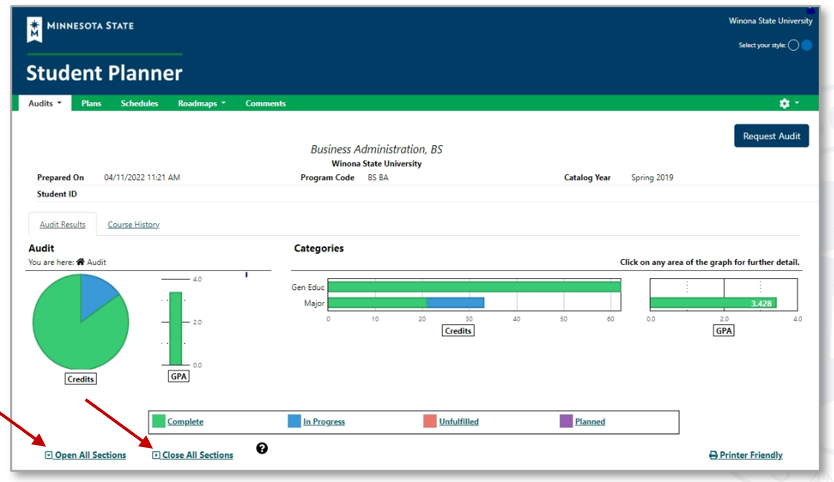
The header of your degree audit includes your Student ID, your name, program code, program name, and catalog year. It may include other information such as advisor, test scores, and more.
Opening and Closing Sections
When you first open your audit, the degree requirements are set so that all sections are open.
- Select Open All Sections to open all requirements within your degree audit.
- Select Close All Sections to close all requirements within your degree audit.
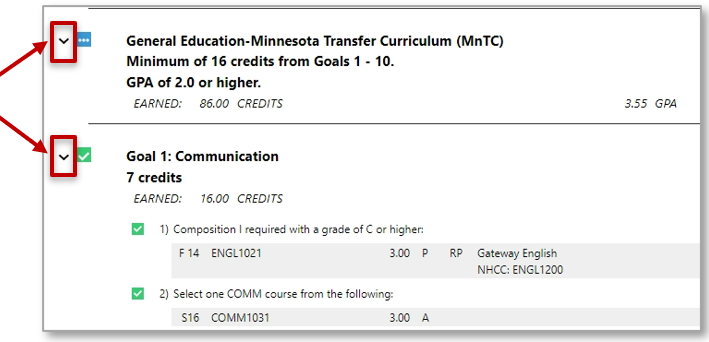
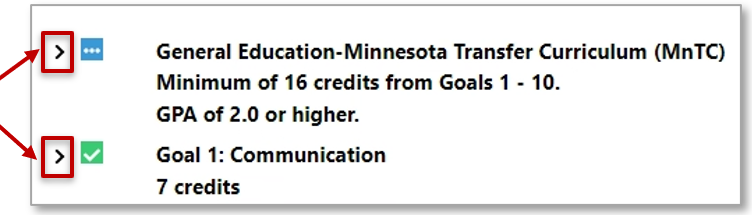
- Select the arrow to the left of the section to open/expand or close/collapse each requirement one section at a time.
Requirement and Sub-Requirement Symbols
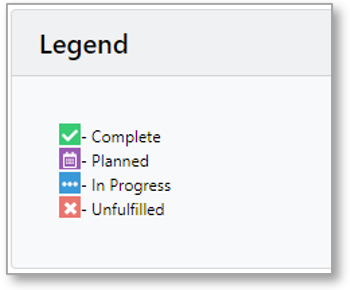
A legend of symbols is located at the bottom of your degree audit.
- Green square with a check mark means complete.
- Purple square with a calendar icon means you plan to take the course.
- Blue square with dots means complete with in-progress courses.
- Red square with an X means unfulfilled (not complete).
Course Catalog Details
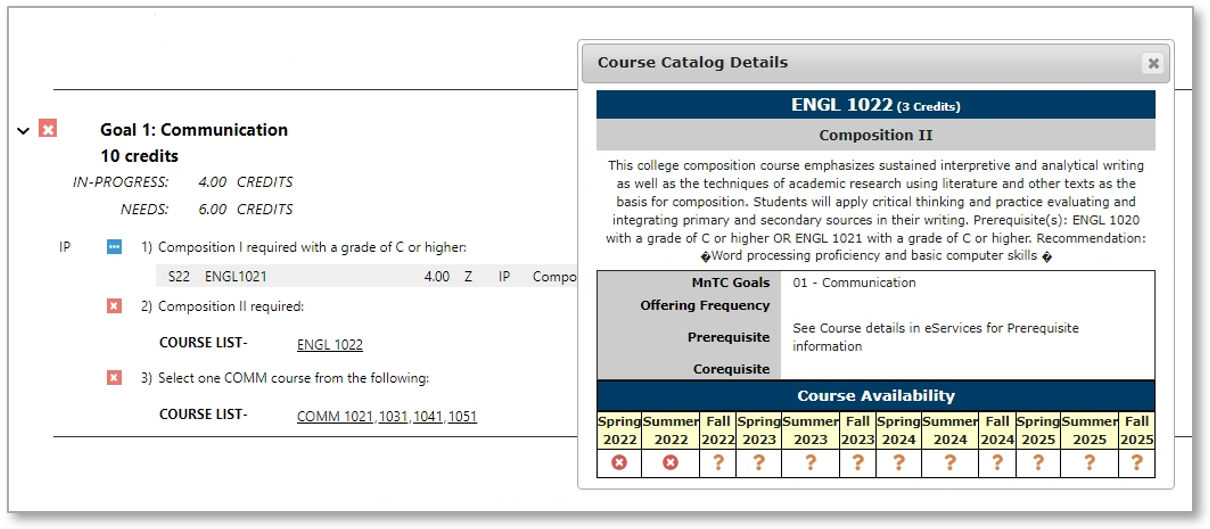
Course Catalog Details contains course number, credits, course title, description, MnTC goals, offering frequency, prerequisite(s), corequisite(s), and course availability.
Select a course that is underlined to open the Course Catalog Details.
Charts and Graphs
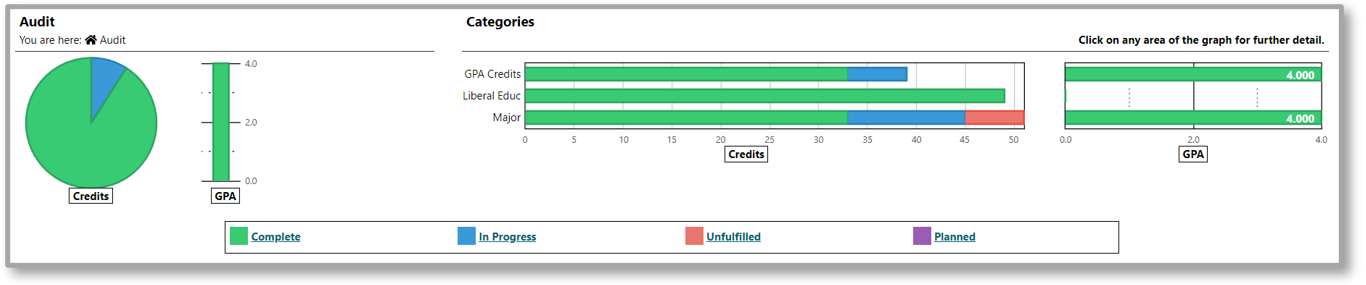
Charts and graphs are located at the top of your degree audit and will contain a pie chart, a vertical GPA graph, and a series of horizontal bar graphs.
Note: Charts and graphs are customizable by each institution and may vary from the examples. Not all institutions and/or programs/majors display charts and graphs.
Pie Chart
The pie chart represents the minimum total number of credits required for your degree. This corresponds to the minimum credit requirement (ex: 120 credits as below).
If you position your cursor over a section of the chart, the credits for that section will be displayed.
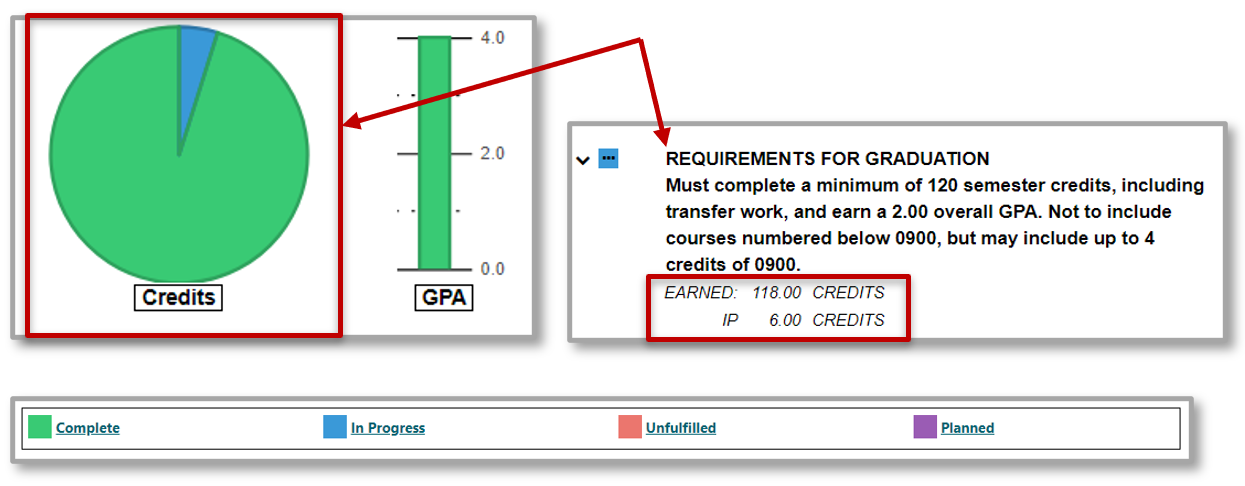
- The green section indicates the total number of credits earned (118 in the above example).
- The blue section indicates number of credits currently in-progress, including those credits currently registered for (6 credits in the above example).
- If you see a red section on your pie chart, that indicates number of credits needed to complete the minimum total credits required for your program/major.
Note: You must review your entire audit to determine if you have met all your program requirements. Your pie chart may display as complete before you have finished your program.
The pie chart and bar graphs may not reflect the number of credits actually being used toward your degree (as some requirements are based as courses rather than credits, therefore credits may be estimated in those cases).
Vertical Bar Graph - GPA
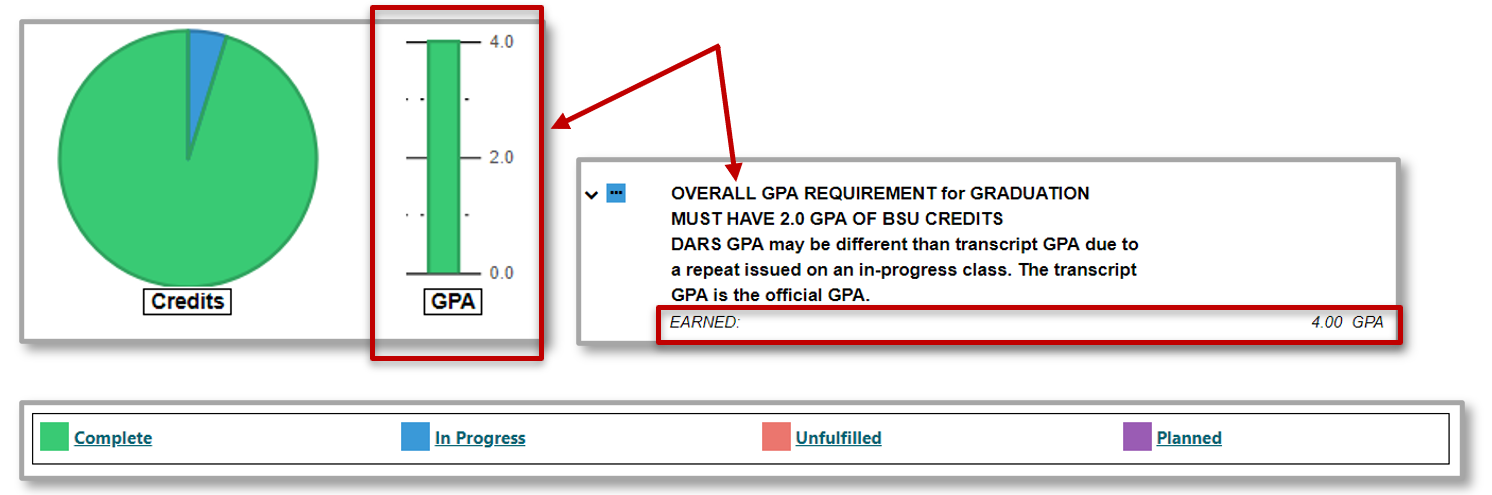
The vertical bar next to the pie chart graphs the GPA of all courses used in the total credit requirement (this usually includes only home campus coursework, but may include transfer coursework, as well).
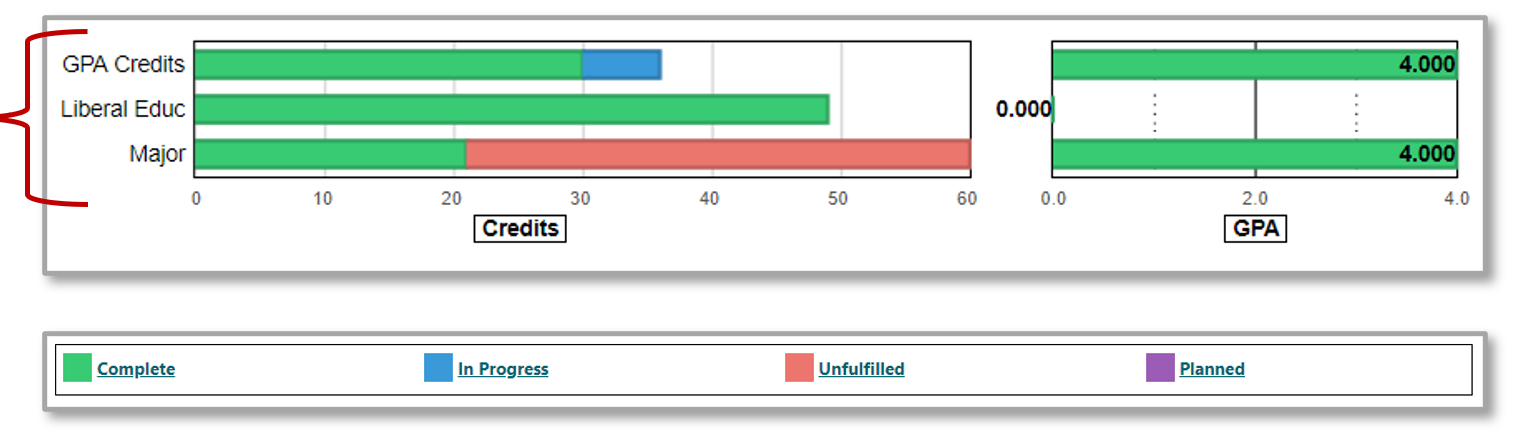
Horizontal Bar Graph - Credits
This graph may include all GPA Credits, Liberal Education Requirements, and Major Requirements, but could include others depending upon the program. The bar graph GPA may be hidden from displaying, if not relevant to display.
Printing the Degree Audit
Select the Printer Friendly link under the charts and graphs to print a text-only version of the audit without charts and graphs.
Drilling Down in the Audit
Each of the categories in the bar chart (ex: Goal 1) may consist of several requirements and/or sub-requirements. You may drill down to view these individual requirements and their associated charts and graphs by selecting the bar graph for that category. You may drill down another level to view individual sub-requirements and the associated charts and graphs for those sub-requirements by selecting the requirement for which you would like to see details.
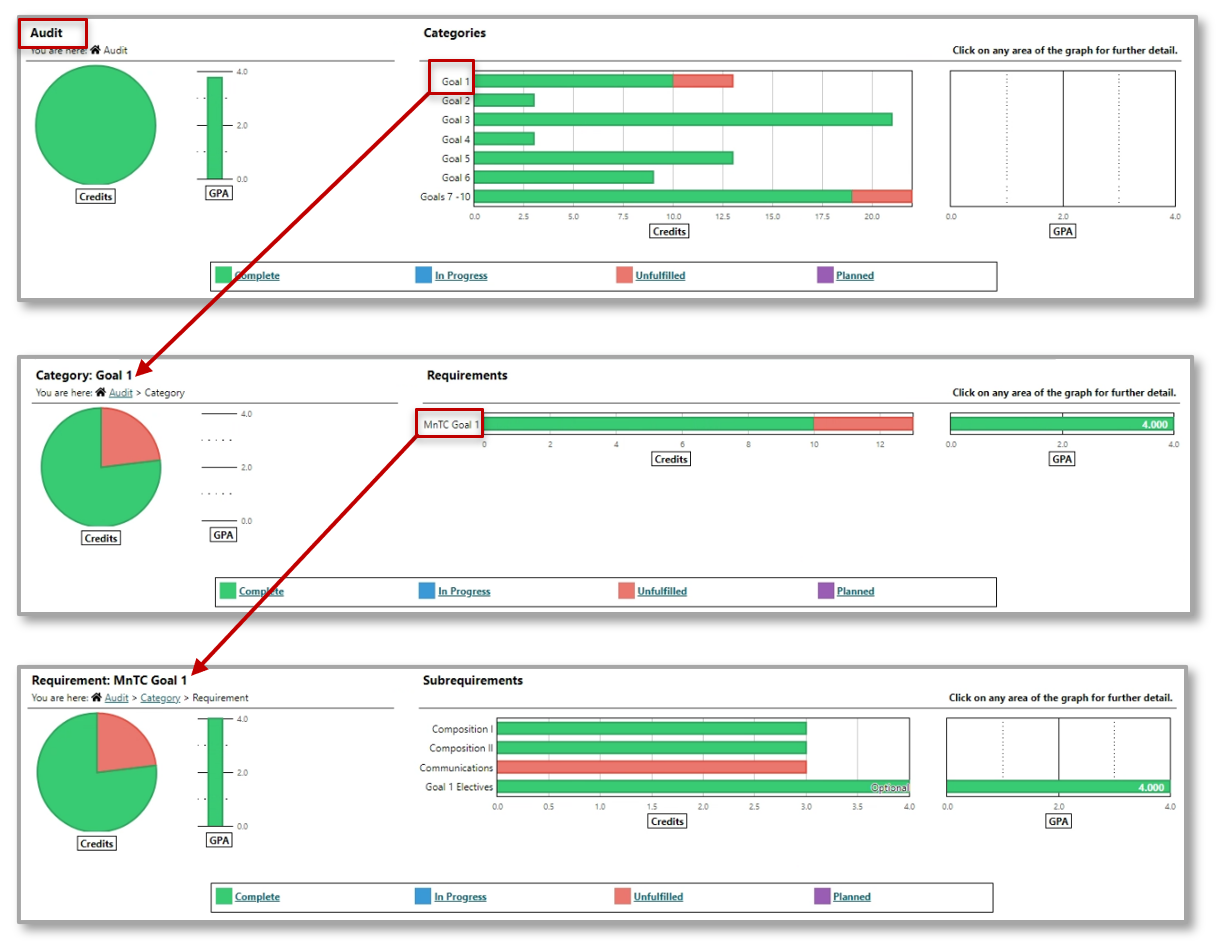
You may drill back up to any level by selecting the appropriate level in the upper left-hand corner. To do this, select the Category or Audit link (level) on the top of the audit or you may use the Back button.
Course History
You can also view all your courses in chronological order or by term by selecting the Course History tab.
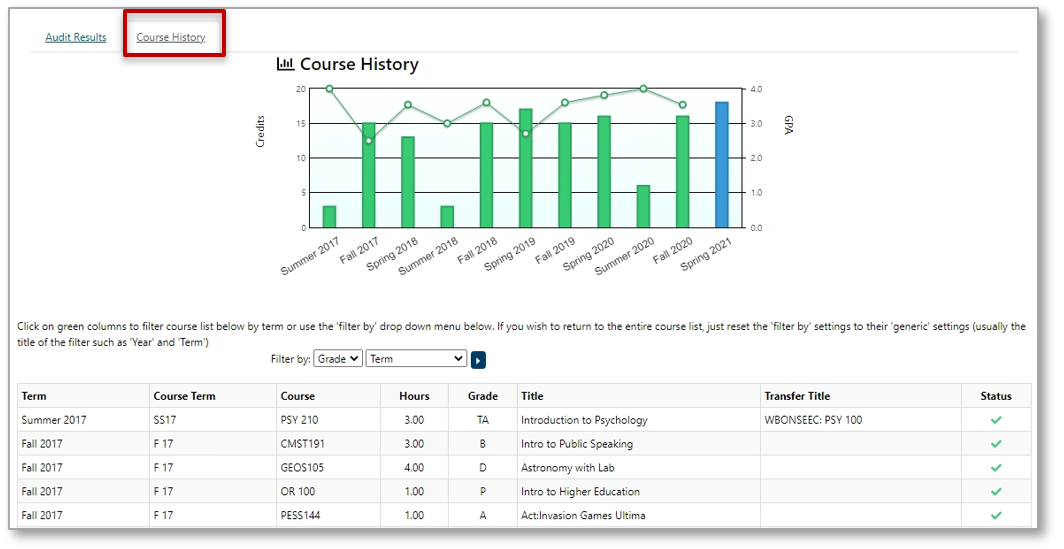
When you position your cursor over the Bar Chart you will see credit (green bar) and GPA (green dot) details for each term. You can also filter the course list by selecting the green columns, or by using the Filter by drop-down menu.
Select the Audit Results link at the top of the audit to go back to the original audit.
