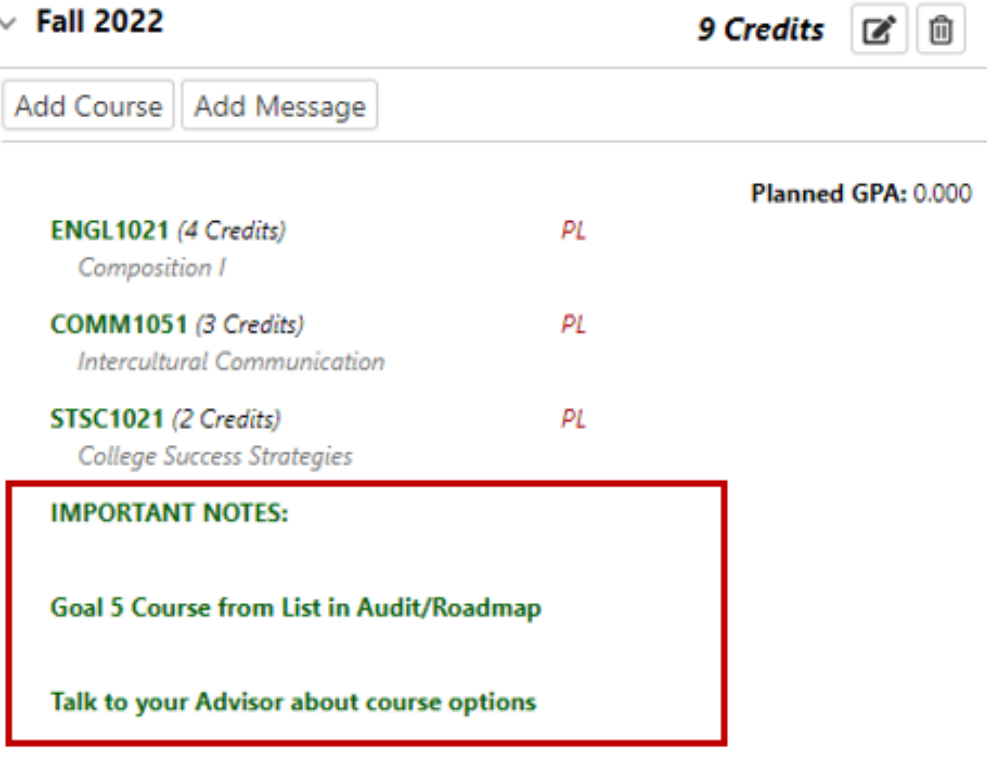
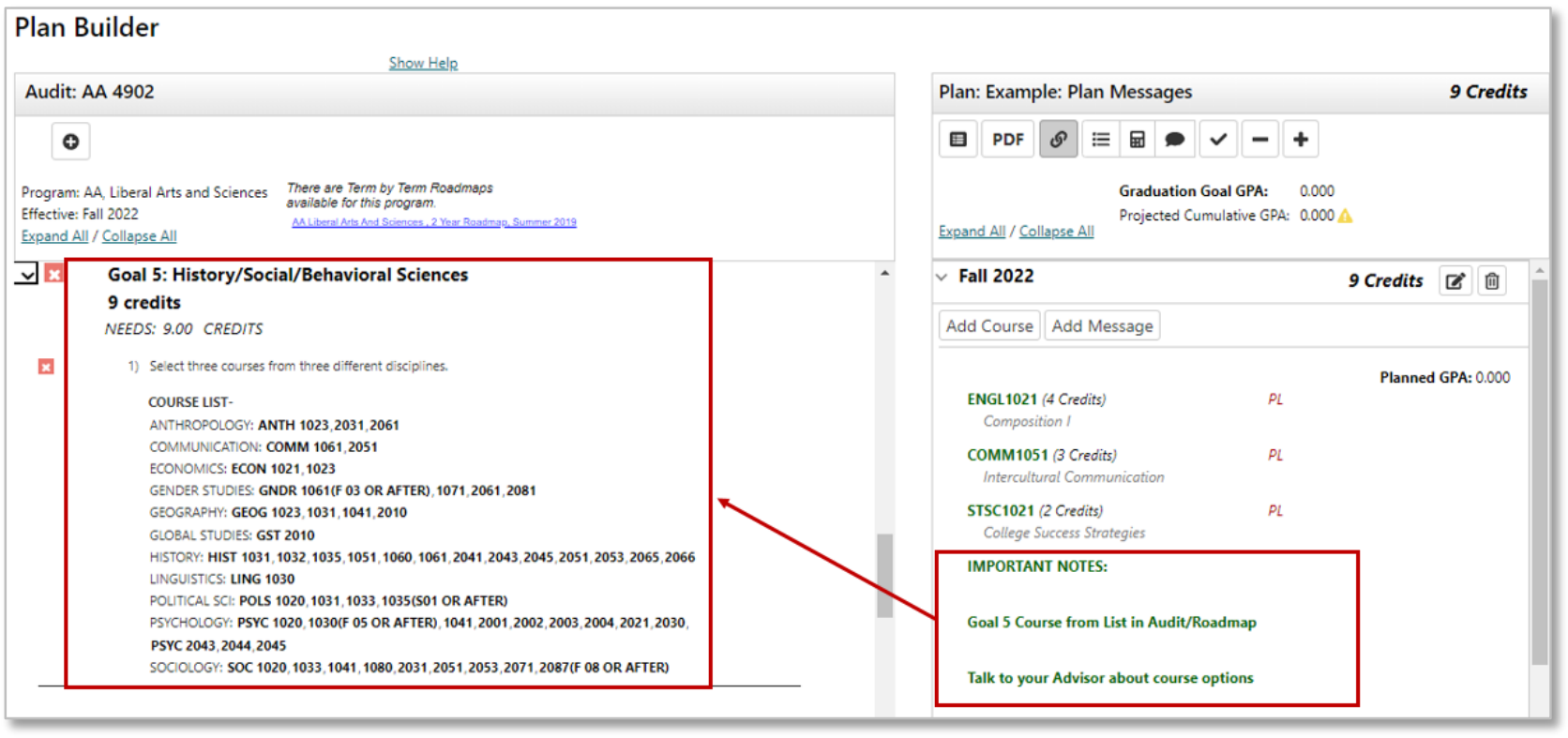
How to Use Graduation Planner Messages
Graduation Planner: Plan Messages
There are preconfigured messages that can be added to a tern on a plan in Graduation Planner. Plan Messages are important notes that can be added to a term on a plan to remind you of tasks.
Set up a Plan Message
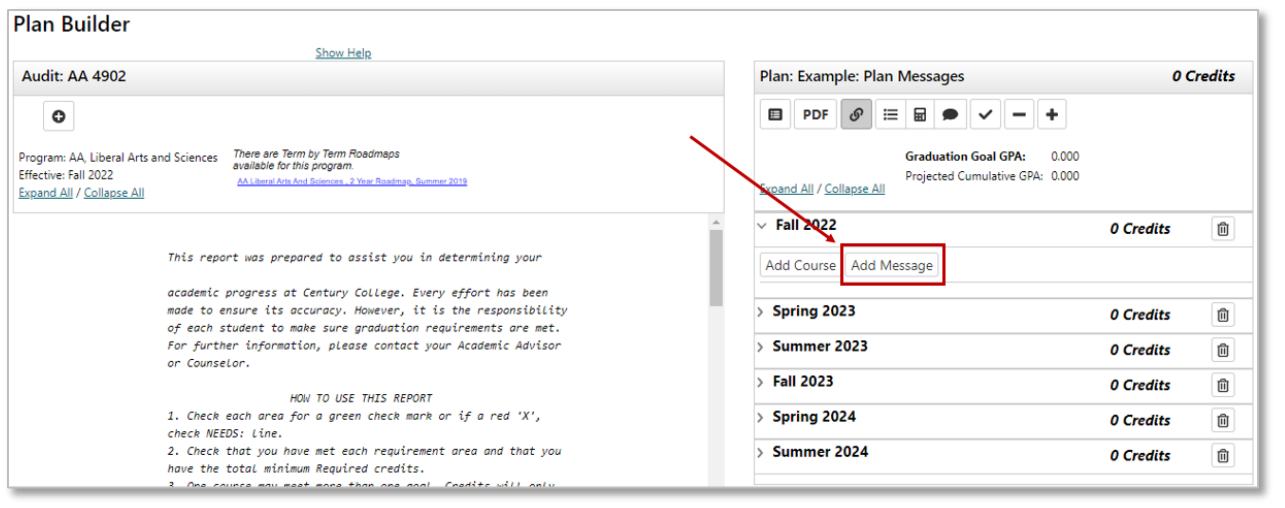
- In the Term, select Add Message
- Select one Message from the list
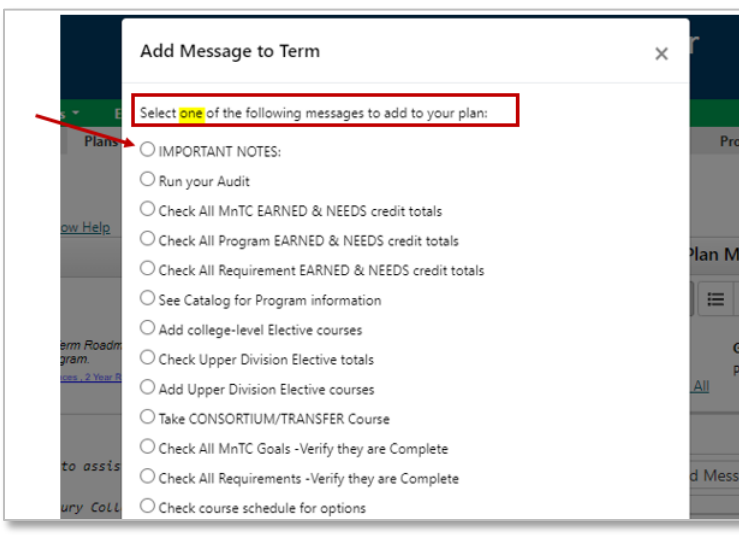
- Select the Add Message button
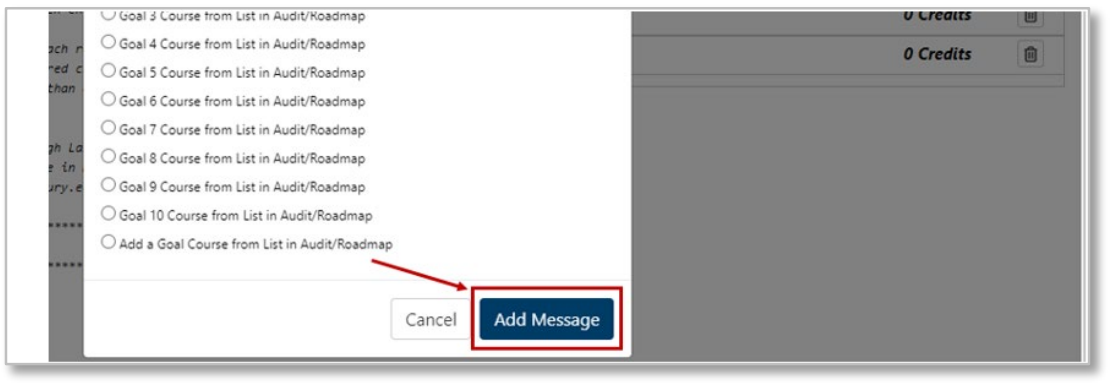
The message is now added to the term.
Move a Plan Message
To move a Plan Message, drag from one term and drop in a different term.
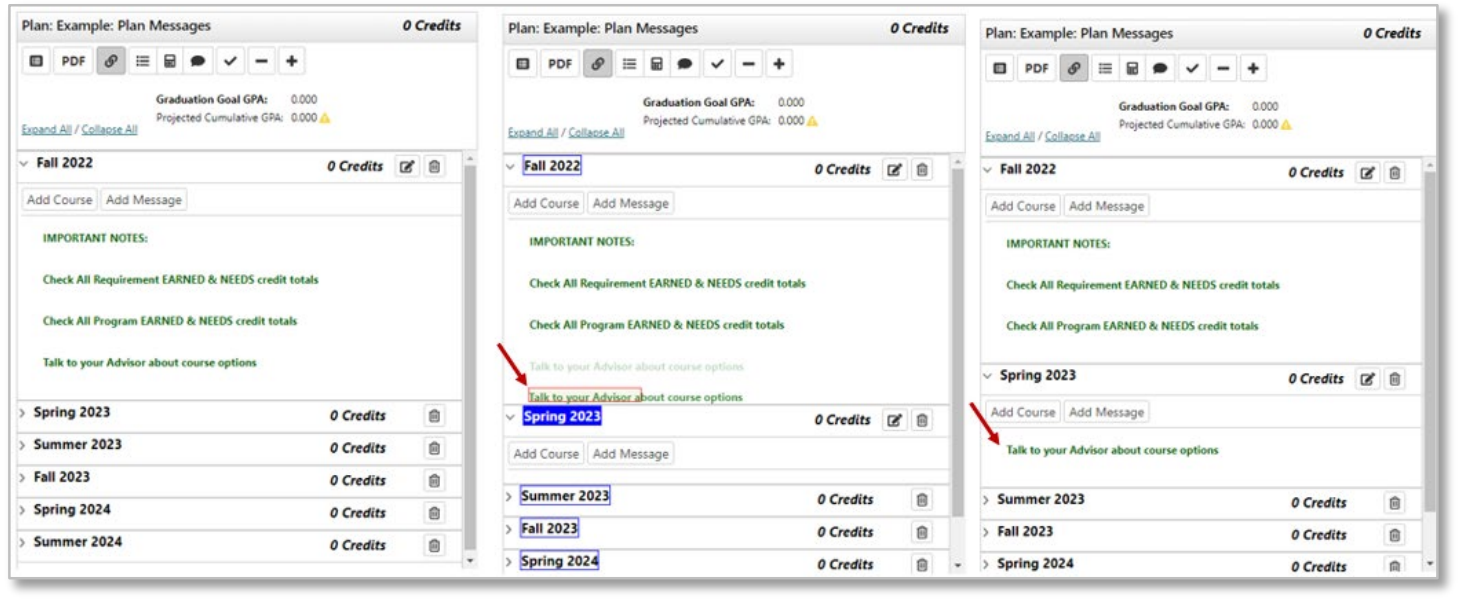
There is not a freeform note option, however you can add multiple Plan Messages to a term. To add more Plan Messages, repeat the above steps.
Example:
The term-by-term plan this student was following recommended that a Goal 5 course be taken during this term.
This student did not know which course they wanted to take.
Rather than selecting a course, they added these messages as a placeholder to remind them to select a Goal 5 course when they return to planning that term.