How to Run a Degree Audit
Degree Audit is a tool within Minnesota State Student Planner, providing a personalized listing of courses and requirements, marking them as already completed, planned, or still needed.
After logging into Minnesota State Student Planner, you will be on the Request an Audit page. If you have records at more than one school within Minnesota State, you will be prompted to first select the school for which you want to run an audit.
Run a Degree Audit for Your Declared Program or Major
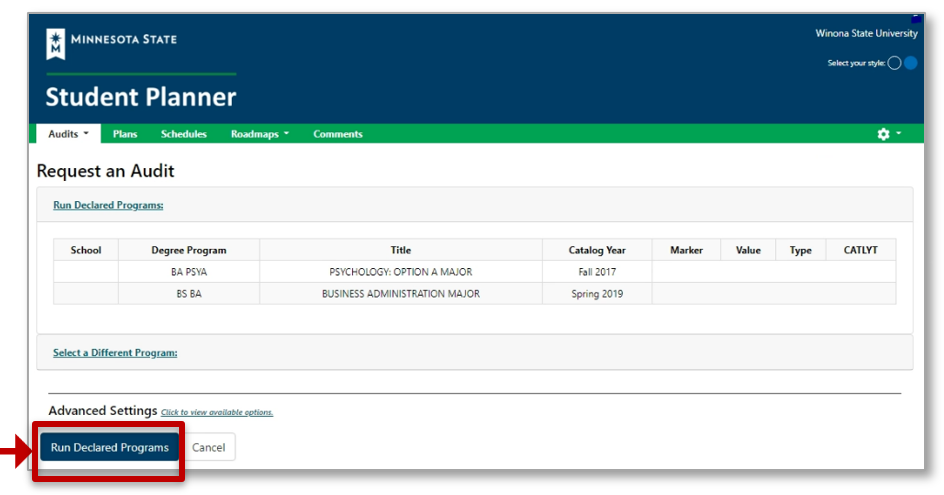
From the Request an Audit page:
- Select Run Declared Programs to generate an audit of the program(s) or major(s) you have declared at your school and a Minnesota Transfer Curriculum (MnTC) audit.
- Running Audits will appear on your screen, which means the system is creating your audit(s).
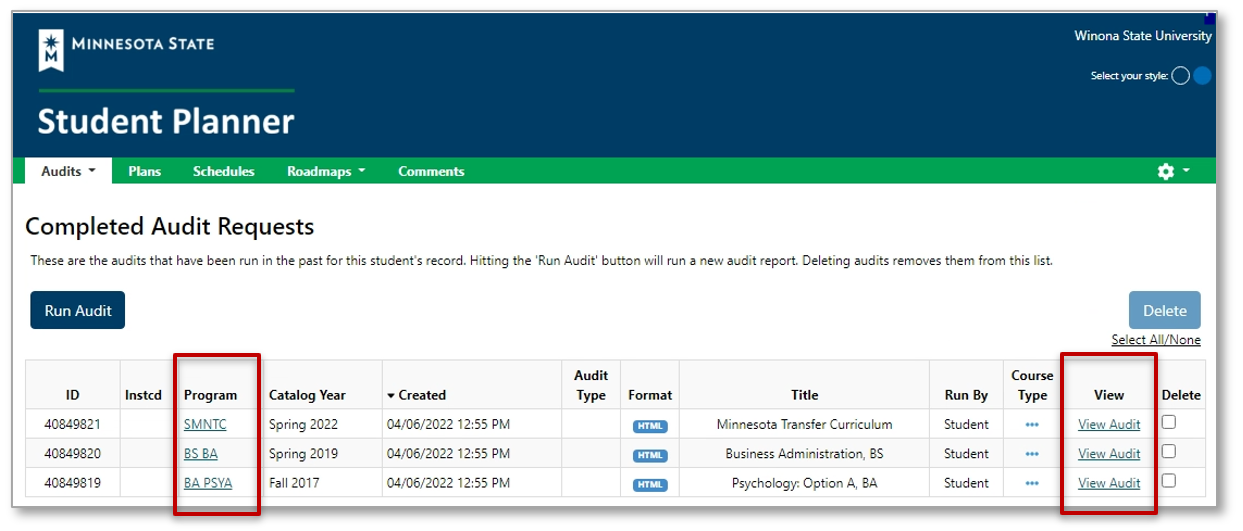
- Your Completed Audit Requests page will display when complete.
About the Completed Audit Requests:
- The Created column displays the date and time the audit(s) were run.
- Select the most recent audit(s) from the list for the most accurate information.
- Select the link under Program or View to open the audit results.
-
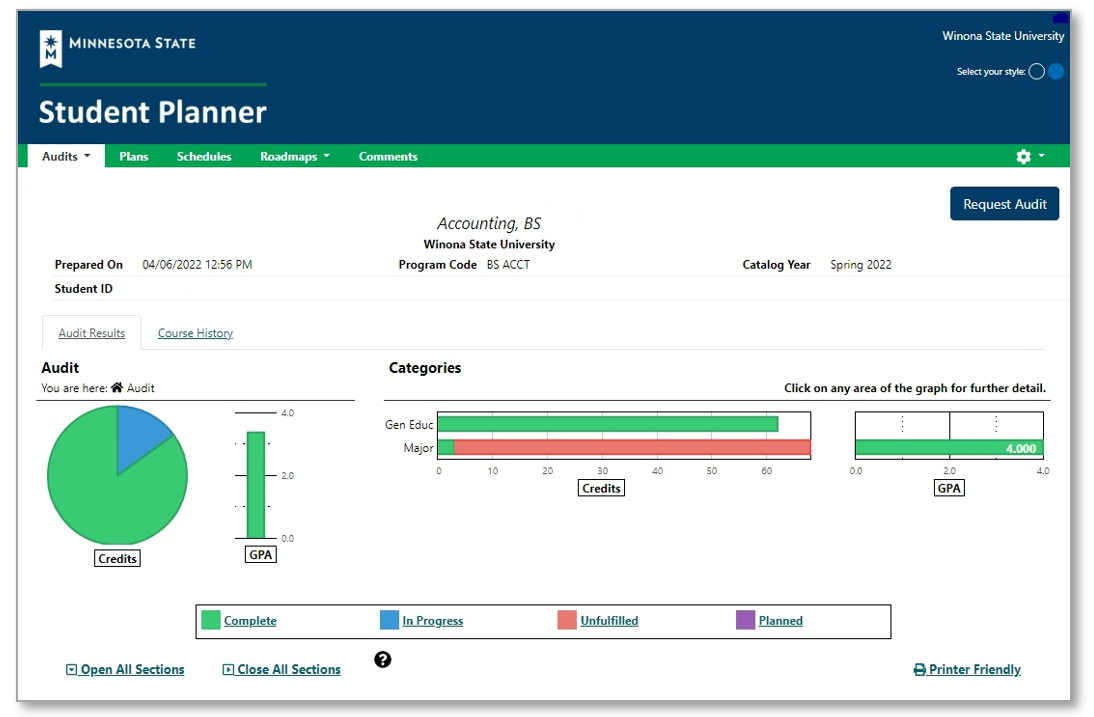
The degree audit results screen will then display.
Manage Your Degree Audits
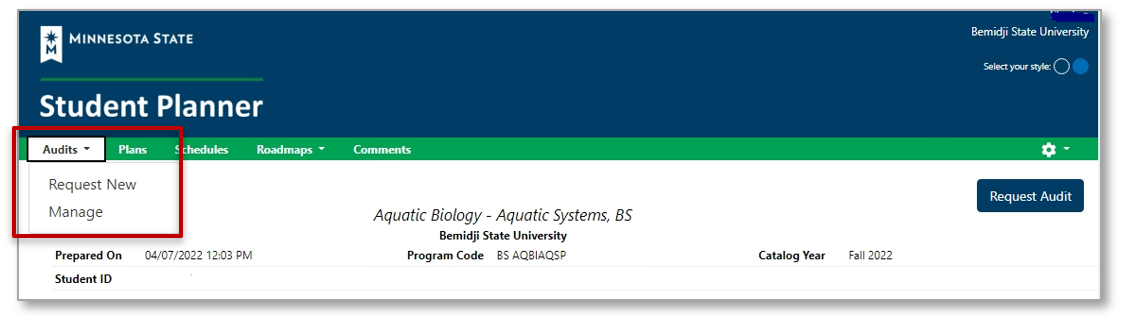
From the Audits tab in the menu:
- Select Request New to return to the Request an Audit page, or
- Select Manage to view your recently Completed Audit Requests page.
Run Audits at Another School
If you have records at more than one school within Minnesota State, you can choose your next school from any screen in the Minnesota State Student Planner by selecting the settings gear, and then Select School.

Learn more about how to read your Degree Audit.