How to Run a What-If Degree Audit
Degree Audit is a tool within Minnesota State Student Planner, providing a personalized listing of courses and requirements, marking them as already completed, planned, or still needed.
After logging into Minnesota State Student Planner, you will be on the Request an Audit page. If you have records at more than one school within Minnesota State, you will be prompted to first select the school for which you want to run an audit.
Run a "What-If" Audit
From the Request an Audit page:
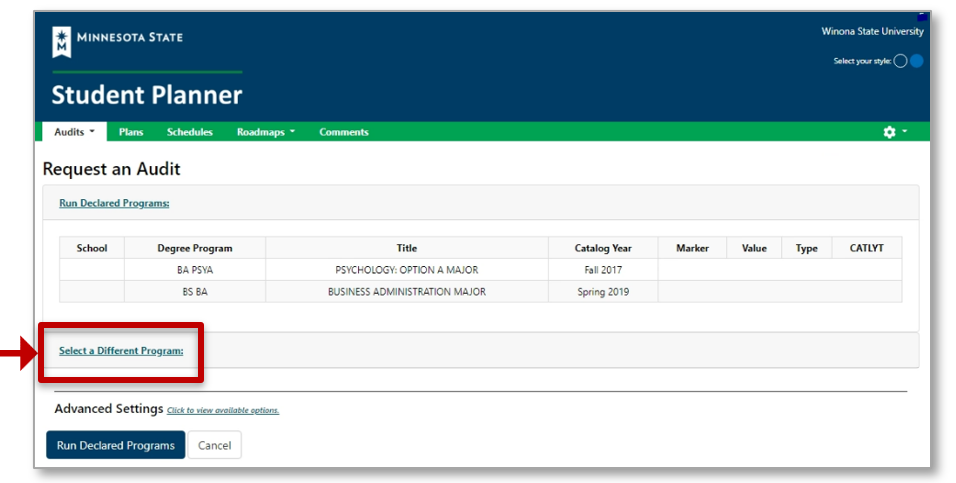
- Choose Select a Different Program to create a "what-if" audit so you can see how your coursework would apply toward other programs.
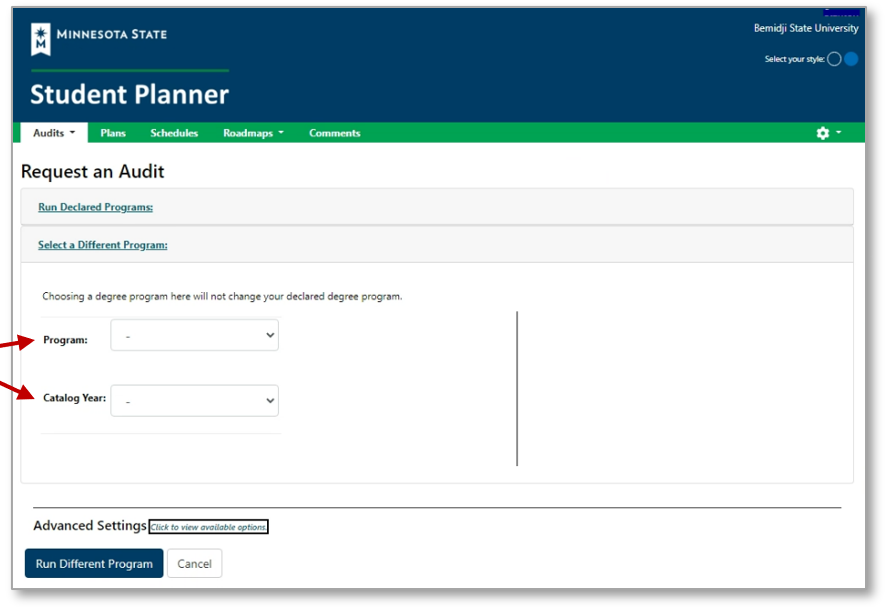
- Select a Program and a Catalog Year from the drop-down list.
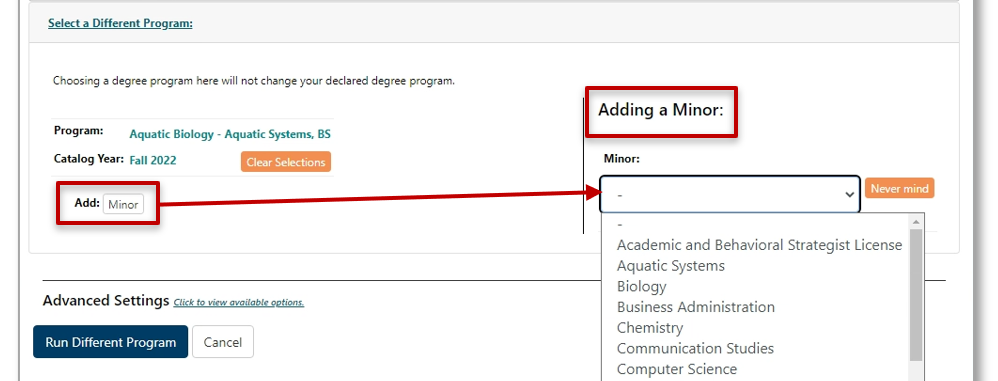
- If you are running a "what-if" audit at a university, you may have the option to add a minor.
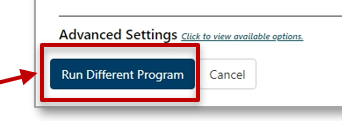
- Select Run Different Program to generate the "what-if" audit for that program.
- Your Audit is Loading will appear on your screen, which means the system is creating your audit.
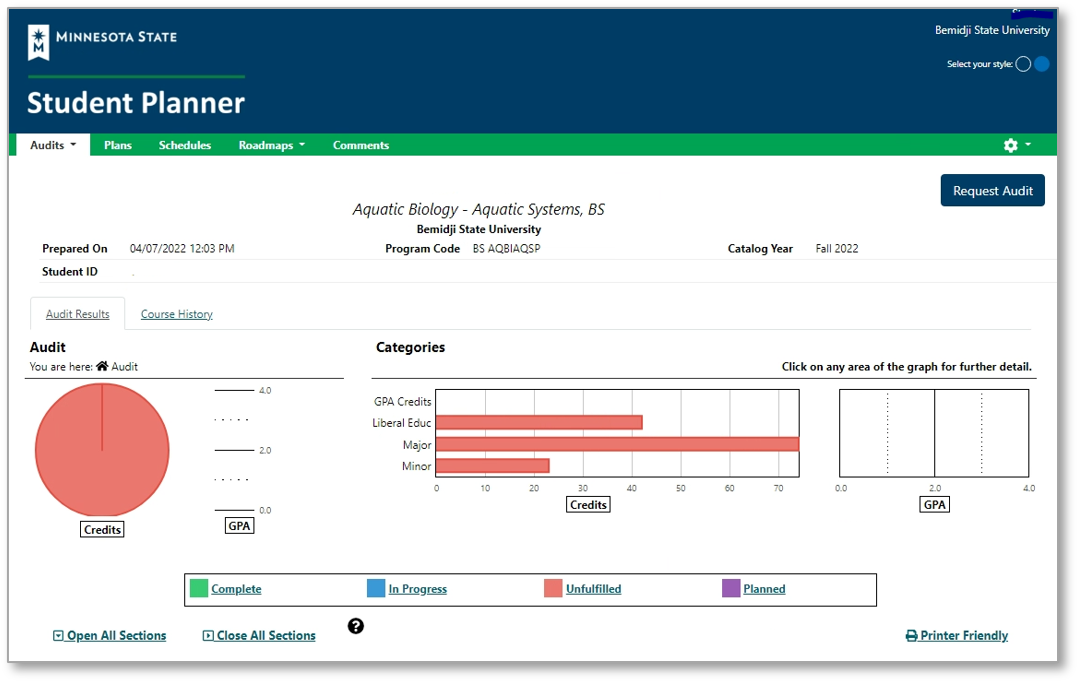
- Your "what-if" audit will automatically display.
Manage Your Degree Audits
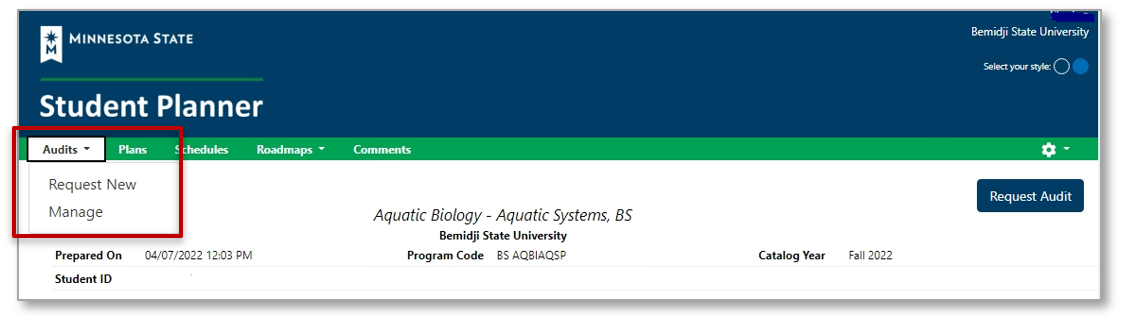
From the Audits tab in the menu:
- Select Request New to return to the Request an Audit page, or
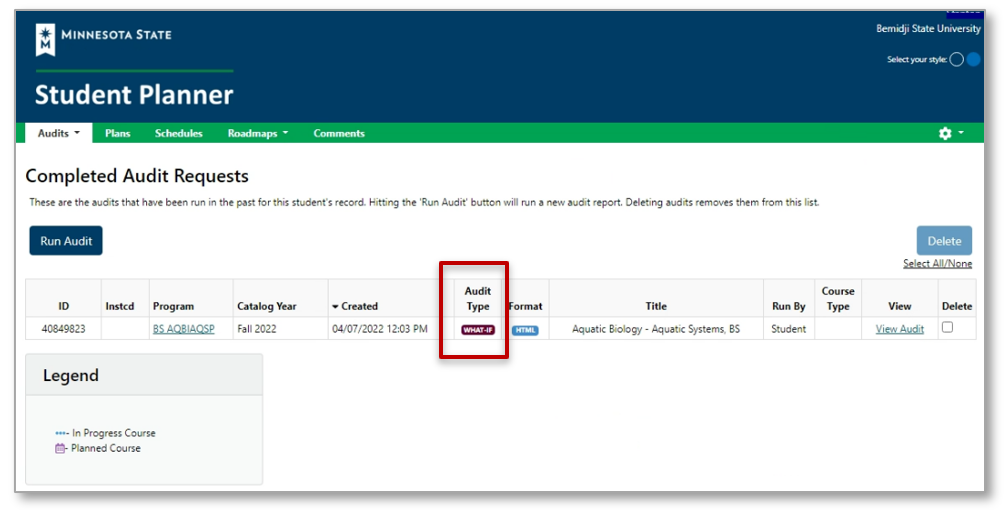
- Select Manage to view your recently Completed Audit Requests page.
- Find your "What-If" audits in the Audit Type column.
Learn more about how to read your Degree Audit.